July 8, 2025

Payment gateway
How to create an invoice in Paycron’s Merchant Payment System?
In today’s fast-paced digital economy, small and medium-sized businesses need reliable and seamless tools to accept payments online. One of the most effective methods is using an invoice system that lets businesses send and receive payments directly through customer email or shared links. Paycron’s Invoice System is a robust, secure, and efficient solution for businesses looking to simplify payment collection through eChecks. This blog offers a detailed walkthrough on How to create an invoice in the Paycron’s merchant payment system from generating invoices to verifying and depositing checks—all from within your Paycron merchant dashboard.
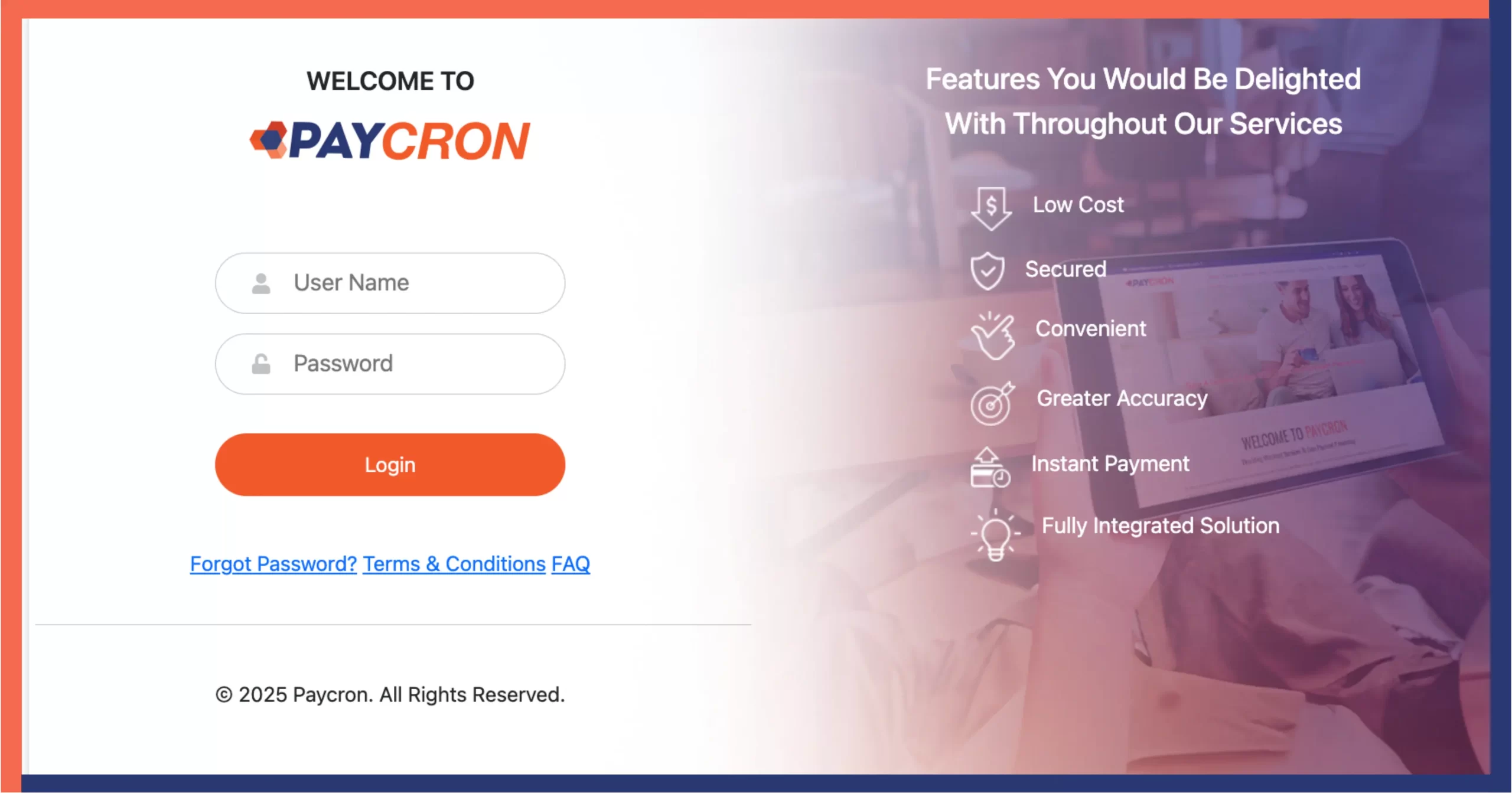
Getting Started: Log in to Your Paycron Merchant Dashboard —
Visit www.paycron.com and log in using your merchant credentials. Once inside, you’ll access a powerful dashboard where you can manage payments, generate invoices, verify checks, and more.
Two Methods to Send Invoices via Paycron —
Paycron offers two flexible ways to send invoices to your customers:
Method 1: You Fill Out Invoice Details and Send via Email
This is the faster option where you generate the invoice on behalf of your customer and email it to them. The customer just needs to e-sign and verify.
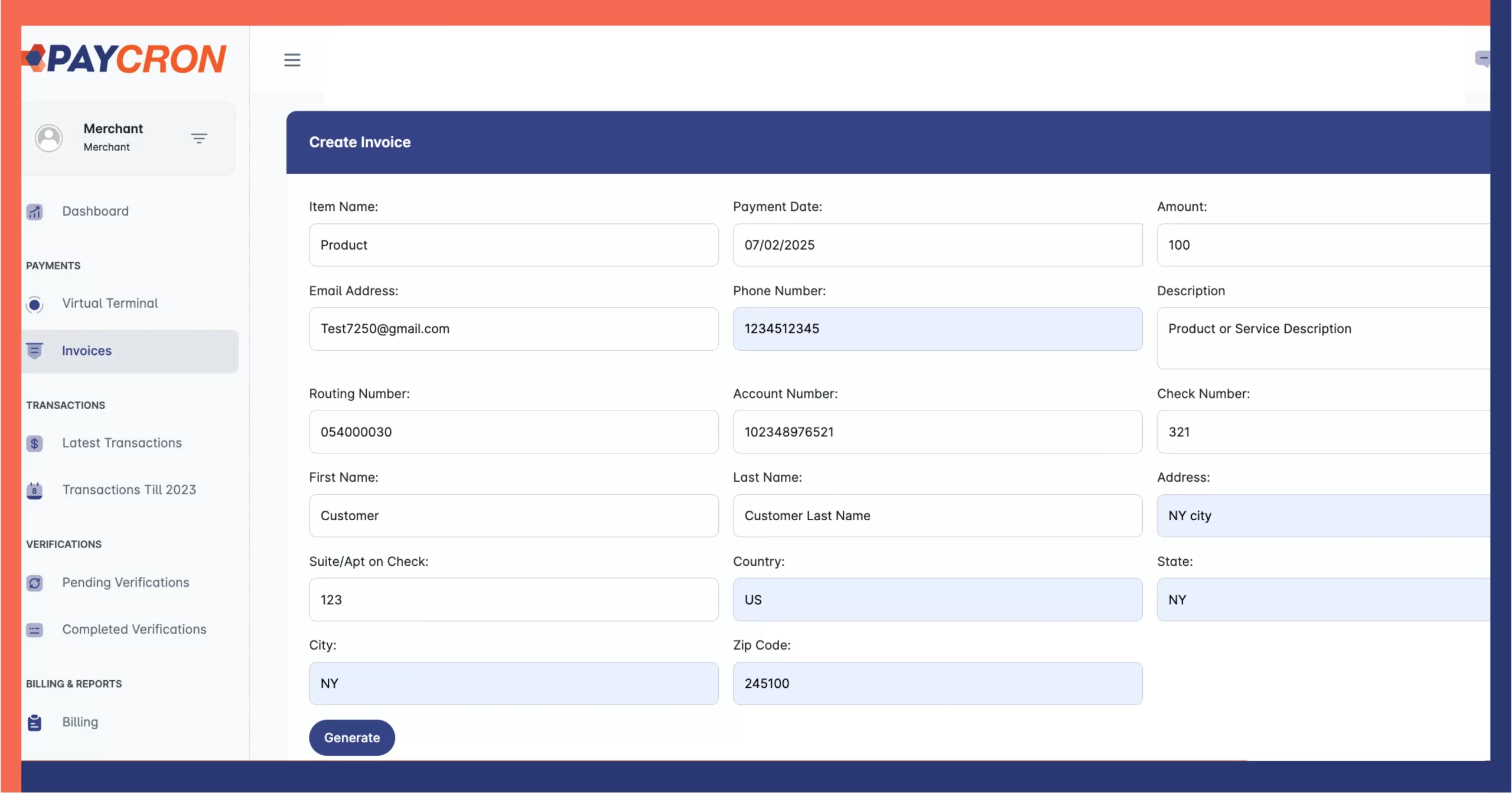
Step-by-Step Guide to Creating an Invoice (You Fill It In)
1. Log in to the Merchant Dashboard
- Access your account at https://portal.paycron.com/
2. Navigate to the “Invoices” Section
- From the left-hand sidebar, click on Payments > Invoices.
3. Fill in Invoice Details
- Item Name – Enter the product/service name.
- Payment Date – Defaulted or manually select.
- Amount – Enter the correct payment amount.
4. Enter Customer Contact Information
- Email Address and Phone Number.
5. Provide Bank/Check Information
- Routing Number
- Account Number
- Check Number
6. Input Customer Personal Details
- First Name and Last Name
- Billing Address: Address, Suite/Apt (if applicable), City, State, Country, ZIP code.
7. Add Description (Optional)
- Notes for transaction reference, if any.
8. Review All Information
- Ensure everything is accurate to avoid issues.
9. Click “Generate”
- The invoice will be generated and sent to the customer’s email.
10. Customer Action
- The customer receives the email invoice with all pre-filled data.
- They e-sign the invoice and click Verify.
11. Verify the Check
- The eSigned invoice is sent to your Paycron dashboard.
- Use Paycron’s Check Verification Tool to validate customer account status.
- If valid, download the check and deposit it to your bank.
Method 2: Let Customers Fill Out the Invoice Form via Direct Link
If you prefer to let your customers input their own details for privacy or convenience, you can copy the invoice link and share it directly.
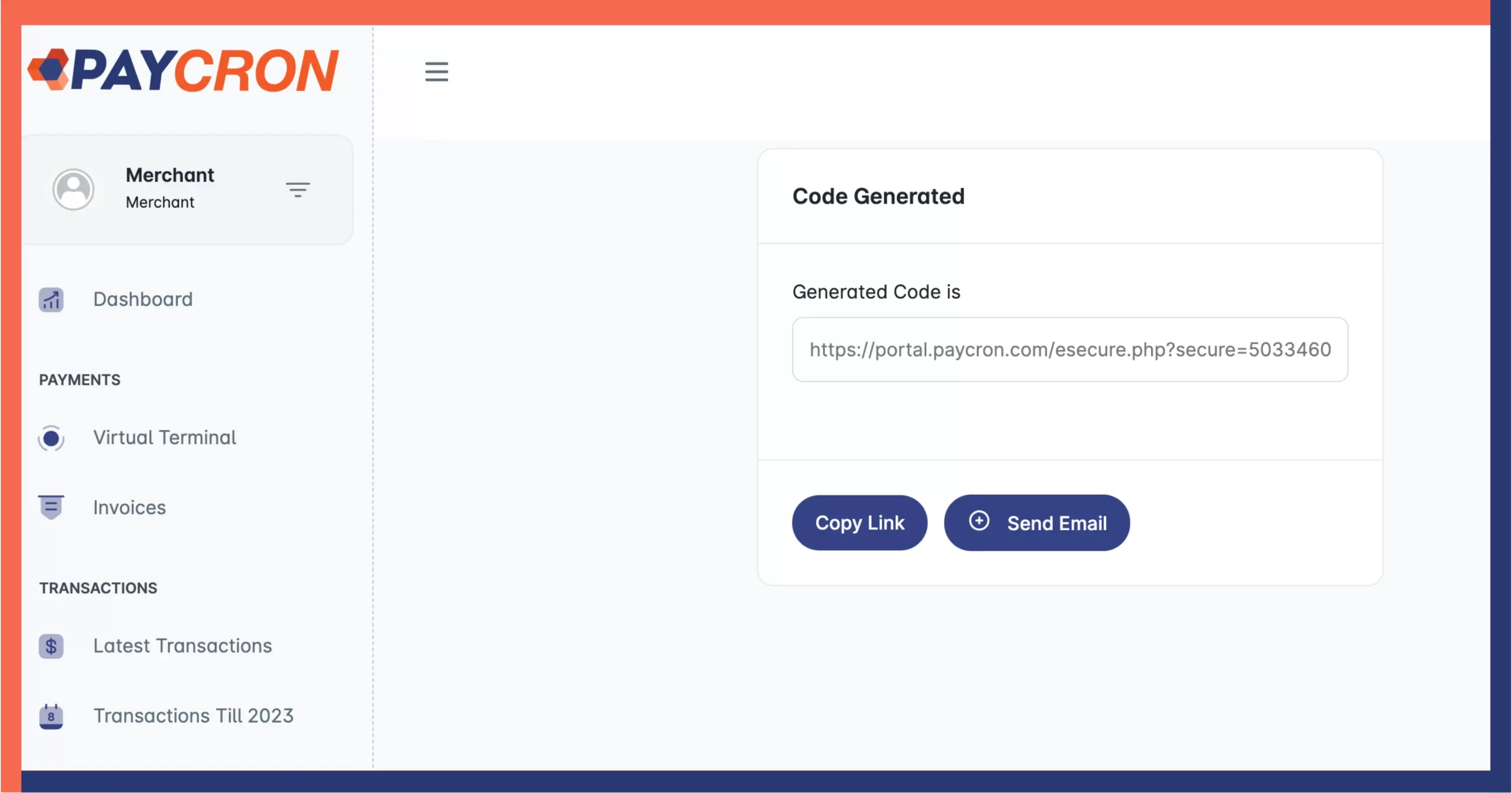
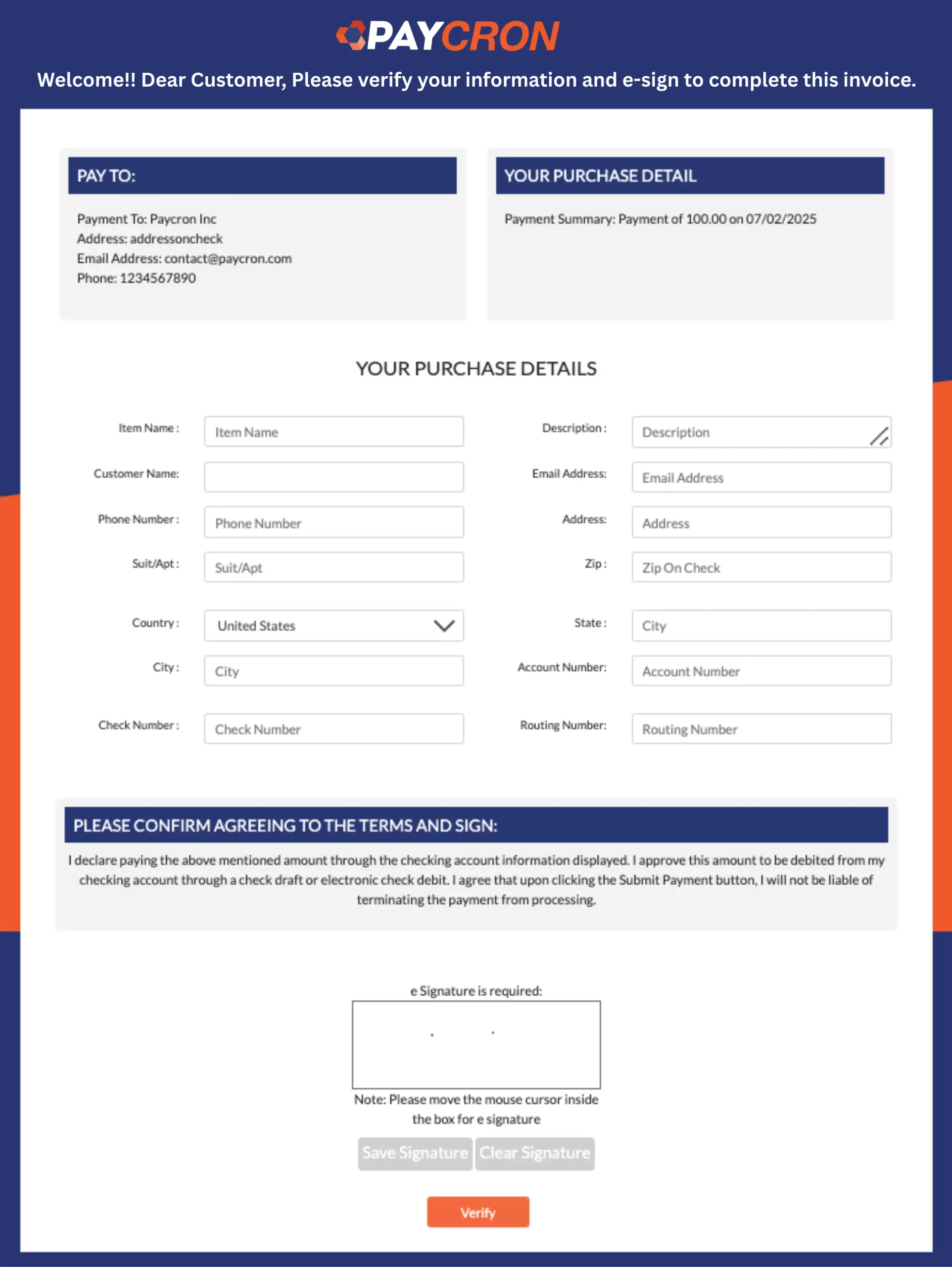
Steps Your Customer Will Follow:
1. Open Invoice Link
- Sent by you via email or SMS.
2. Enter Purchase & Customer Information
- Item Name
- Description
- Customer Full Name
- Email Address
- Phone Number
- Address, Suite/Apt (if applicable), City, State, Country, ZIP
3. Enter Bank/Check Information
- Account Number
- Routing Number
- Check Number
4. Signature
- Sign electronically inside the signature box.
5. Click Verify
- Customer submits the form.
6. Merchant Verification
- The data appears in your Paycron dashboard.
- You verify it using the Check Verification Tool.
- Once verified, download and deposit the check.
Why Verification Matters?
Paycron’s system includes a built-in Check Verification Tool that ensures every payment you receive is secure and validated before being processed. This adds an extra layer of fraud protection and helps reduce bad checks, chargebacks, or processing errors.
Important Notes:
- To use Paycron’s invoice system, you must have an active eCheck Merchant Account with Paycron.
- All invoices are processed through secure encryption protocols ensuring PCI compliance and data safety.
- Both methods allow your customers to pay from anywhere, making it ideal for remote, service-based, or high-risk businesses.
Why Choose Paycron’s Invoice System?
- Fast & Flexible Invoicing
- Zero Setup Fees
- Same Day Account Setup
- Supports High-Risk Businesses
- Built-in Check Verification Tool
- Easy Integration with Existing Business Processes
Final Thoughts —
Whether you’re a freelancer, service provider, or high-risk business, Paycron’s invoice system makes it easy to send, receive, and process eCheck payments online. The flexibility of choosing between pre-filled invoices or customer-submitted forms gives you the power to tailor the experience based on your business needs.
Ready to streamline your invoicing process?
Visit www.paycron.com and login to your dashboard today to get started!
FAQs About Paycron’s Invoice System:
1. What is Paycron’s invoice system?
Paycron’s invoice system allows merchants to create and send eCheck-enabled invoices via email or link for fast, secure online payments.
2. How do I access the invoice feature on Paycron?
Log in to your merchant account at www.paycron.com, navigate to the “Invoices” section under the Payments tab on the dashboard.
3. Can I send an invoice directly to my customer’s email?
Yes, you can fill in your customer’s details and email the invoice directly from the Paycron dashboard for faster processing.
4. What information is required to generate an invoice?
You’ll need item name, payment date, amount, customer contact, billing info, and bank/check details to generate an invoice.
5. Can my customer fill out the invoice themselves?
Yes, you can copy the invoice link and send it to your customer. They will fill in all required information including bank and contact details.
6. Is e-signature required on the invoice?
Yes, your customer must sign the invoice electronically before submitting it for verification.
7. What happens after the customer verifies the invoice?
The invoice is sent to your Paycron dashboard where you can use the check verification tool to validate the customer’s account.
8. How do I verify customer details after invoice submission?
Use Paycron’s built-in Check Verification Tool to assess the customer’s account status and check validity.
9. What should I do if the check is verified as valid?
Once verified, you can download the check and deposit it into your business bank account.
10. Do I need a Paycron eCheck merchant account to use invoices?
Yes, only approved eCheck merchants can access Paycron’s invoicing system and related tools.
11. Is Paycron’s invoice system secure?
Absolutely. Paycron uses encrypted channels, secure forms, and verification tools to ensure safe and compliant transactions.
12. Can I add notes or custom messages to invoices?
Yes, there is an optional “Description” box where you can add relevant transaction notes.
13. Is there a fee to generate invoices on Paycron?
There are no setup fees. Transaction charges depend on your merchant agreement with Paycron.
14. How quickly can I start sending invoices after account setup?
Paycron offers same-day account setup for approved merchants, allowing immediate access to invoicing features.
15. What if the customer doesn’t receive the invoice email?
Ask the customer to check their spam folder. Alternatively, resend the invoice or provide a direct link.
16. Can I track invoice status in my dashboard?
Yes, you can see sent invoices, their verification status, and check validation results in the dashboard.
17. Is Paycron invoicing suitable for high-risk industries?
Yes, Paycron specializes in supporting high-risk businesses with secure eCheck and invoicing solutions.
18. Can I use Paycron invoicing on mobile?
Yes, the Paycron dashboard is mobile-friendly and can be accessed via web browser from any device.
19. How many invoices can I send in a day?
There’s no set limit. Volume depends on your merchant account terms and verification speed.
20. Does Paycron support recurring invoices?
Currently, Paycron focuses on one-time eCheck invoicing. For recurring billing, contact support for custom solutions.

More related blogs

- Echeck Payment Processing
- PCI Level 1 Compliance
What Is PCI DSS 4.0 Level 1 Certification and Why Is It Important? 
- Echeck Payment Processing
- PCI Level 1 Compliance
- C-Corporation (C-Corp) Formation
- merchant underwriting
How Your Business Structure Shapes Payment Processor Approval in 2026?
- C-Corporation (C-Corp) Formation
- merchant underwriting